User guide
TokenPeep User Guide
TokenPeep is a small Windows tray app for people who use Codex and want a quick view of how much usage they have left. It shows your current 5-hour and weekly Codex usage remaining in the system tray and in a compact always-on-top mini display.
TokenPeep is an unofficial prerelease local utility and is not affiliated with OpenAI.
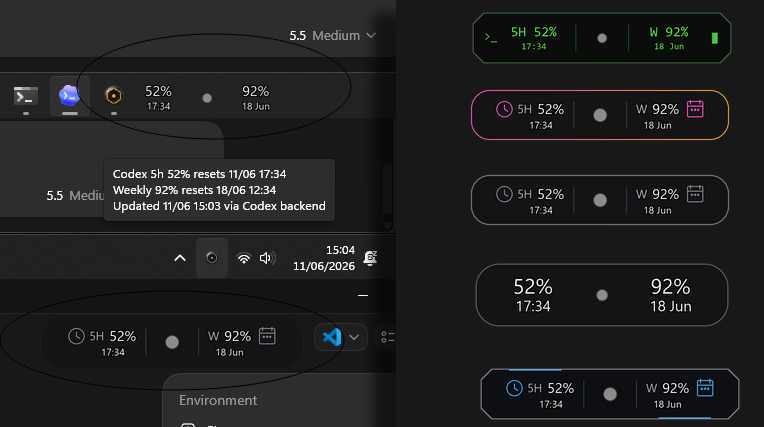 A tiny fuel gauge: 52% remaining in the 5-hour window and 92% remaining in the weekly window. Optional time and date refresh times below each percentage.
 Quick summary
TokenPeep helps you:
- See your 5-hour Codex usage remaining.
- See your weekly Codex usage remaining.
- Check reset times.
- Spot recent heavy usage with a small drain indicator.
- Get local on-screen warnings when selected usage thresholds are crossed.
- Keep the display small, movable, and out of the way.
Who it is for
TokenPeep is useful if you use Codex regularly on Windows, want your remaining usage visible at a glance, and prefer a lightweight tray utility over a full dashboard.
It is not an OpenAI API billing monitor. It tracks Codex/ChatGPT usage, not OpenAI Platform API usage. TokenPeep is not a model client and does not generate completions, so checking usage through TokenPeep does not spend OpenAI API tokens.
What you see
- 5-hour Codex percent remaining.
- Weekly Codex percent remaining.
- Reset times for both windows.
- Plan type and credit availability, when available.
- The data source, last updated time, and latest local alert.
The tray icon changes colour based on current status: grey for unknown or stale readings, green for light drain, yellow for moderate drain, and red for heavy recent 5-hour usage drain.
Setup
Before using TokenPeep, make sure Codex is already installed and signed in on the same Windows user account.
TokenPeep uses your existing local Codex login session. It reads the local Codex auth file at:
C:\Users\<you>\.codex\auth.jsonFor a source checkout, run it with:
python app.pyFor a packaged build, launch TokenPeep.exe. After launch, TokenPeep appears in the Windows system tray and shows the mini display near the bottom-right of the screen.
Daily use
Right-click the tray icon to open the menu. Common actions:
Show statusopens the detailed status dialog.Refresh usagefetches the latest usage values.Show / hidetoggles the mini display.OSD > Movelets you drag the mini display to a new position.OSD > Reset positionreturns the display to a safe default location.OSD > Settingsopens display and warning options.Drain rate settingslets you tune the drain indicator thresholds.Quitcloses TokenPeep.
The app refreshes automatically while it is running. The default refresh interval is 1 minute.
Moving the mini display
- Right-click the tray icon.
- Open
OSD. - Click
Move. - Drag the mini display where you want it.
- Release the mouse button.
Outside move mode, the mini display is click-through, so it should not block normal clicks or text selection. If the saved position is completely off-screen, TokenPeep moves it back to a safe default position.
Themes and appearance
The mini display supports compact and detailed display styles, background and opacity controls, size presets, text outline options, usage drain indicators, and warning thresholds.
Available OSD themes include Gamer, Professional, Programmer, Creative, Streamer, Trader, Student, Hacker, and Minimalist.
Warnings
TokenPeep can show local warning states for selected 5-hour and weekly thresholds: 50%, 30%, 20%, and 10%. The 10% warning uses the strongest red warning state.
You can acknowledge a warning by briefly hovering over the mini display or by choosing OSD > Acknowledge warning. Use OSD > Test warning to preview the warning states without changing your real usage or saved warning state.
Privacy and data use
TokenPeep is designed as a local-first utility. It does not include user analytics, telemetry, crash reporting, tracking pixels, a developer-controlled backend, or browser-cookie scraping.
It reads your existing local Codex auth file so it can request usage metadata, calls ChatGPT's Codex usage metadata endpoint directly from your computer, saves sanitized display values and settings locally, and stores local state in %LOCALAPPDATA%\TokenPeep\state.json.
When the responsive activity indicator is enabled, TokenPeep may scan recent local Codex session files for usage metadata and token-count activity. Those files may contain Codex conversation data, but TokenPeep is designed only to extract sanitized usage metadata.
TokenPeep is designed not to save access tokens, refresh tokens, auth headers, cookies, account IDs, user IDs, email addresses, raw auth files, raw backend responses, raw session files, prompts, conversation text, or private code.
Important limitations
TokenPeep relies on a private, undocumented Codex usage endpoint. That endpoint can change without notice.
- It is Windows-focused.
- It is a local utility, not a hosted web dashboard.
- It does not track OpenAI Platform API usage or billing.
- If your Codex login token is rejected, you may need to reopen or sign into Codex again.
- Local fallback usage snapshots can be stale.